Laser engraving settings vary by material, laser type, and wattage. For a 60W CO2 laser, wood engraving typically uses 15–25% power at 300–500 mm/s, acrylic uses 10–20% power at 350–400 mm/s, leather uses 10–15% power at 200–400 mm/s, and coated metal uses 15–30% power at 250–350 mm/s. Always run a test cut on scrap material before starting your project.

What Are Laser Engraving Settings?
Laser engraving settings refer to the combination of speed, power, frequency (PPI/Hz), and resolution (DPI) that control how a laser interacts with a given material. Getting these parameters right is the difference between a crisp, professional engraving and a charred, unreadable mess. Whether you are using a CO2 laser engraving machine, a diode laser, or a fiber laser marking machine, understanding these core parameters ensures repeatable, high-quality results across every project.
This guide provides recommended starting settings for four of the most commonly engraved materials, along with practical tips gathered from machine operators, workshop owners, and industrial fabricators worldwide.
Key Parameters That Affect Engraving Quality
Before adjusting any settings, it helps to understand what each parameter controls and how they interact with one another.
| Parameter | What It Controls |
|---|---|
| Power (%) | The intensity of the laser beam. Higher power burns deeper and darker. Too much power scorches delicate materials. |
| Speed (mm/s) | How fast the laser head moves. Faster speeds produce lighter marks; slower speeds increase depth and heat exposure. |
| Frequency (PPI/Hz) | Pulse rate of the laser. Higher frequency yields smoother lines for engraving; lower frequency suits vector cutting. |
| Resolution (DPI) | Dot density of the engraving. 300 DPI suits text and logos; 600+ DPI is needed for photographic detail. |
| Air Assist | Compressed air blown at the cut point. Reduces charring on wood, prevents flame-ups on acrylic, and clears debris from the work zone. |
| Focus Distance | The distance between the lens and the material surface. Correct focus produces the smallest spot size and sharpest detail. |
The interplay between speed and power is the most critical relationship. High power paired with low speed creates deep, dark engravings but risks overheating. Low power at high speed produces faint surface marks ideal for delicate work. Finding the right balance for each material is the core skill in laser operation. For a deeper explanation of CO2 laser parameters, see this CO2 laser cutting parameters guide.
Laser Engraving Settings for Wood
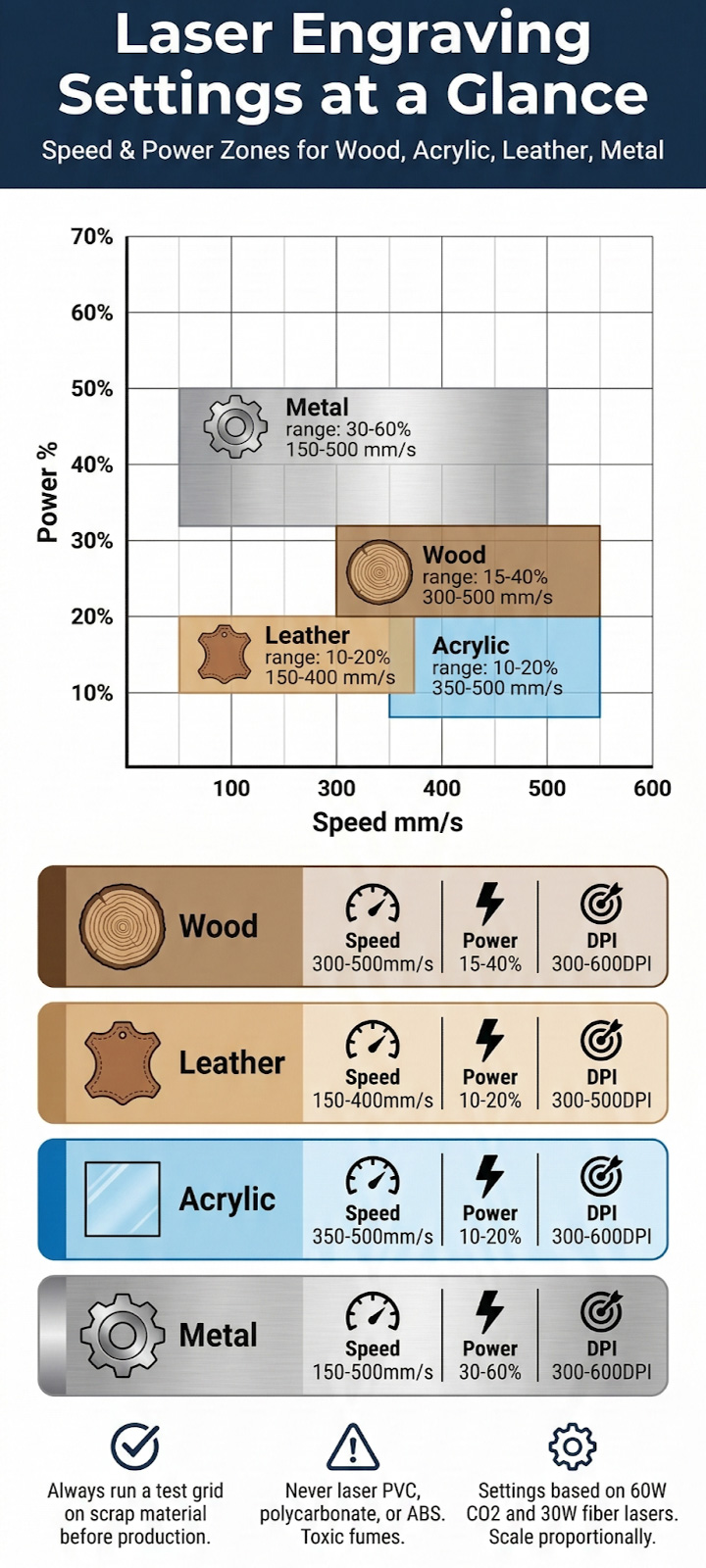
For wood engraving on a CO2 laser, use 15–40% power at 300–500 mm/s for light-to-medium engravings. Hardwoods like maple require slightly more power than softwoods like basswood. Always use air assist to reduce charring.
Wood remains the most popular material for laser engraving due to its natural beauty, affordability, and wide availability. Different wood species respond differently to laser energy based on their density, resin content, and moisture level. Hardwoods such as maple, cherry, and walnut produce high-contrast engravings with crisp edges, while softwoods like pine and basswood engrave more easily but may char if settings are too aggressive. Plywood, especially Baltic birch, offers consistent results due to its uniform layers. If you are exploring laser wood cutting and engraving for the first time, starting with Baltic birch plywood is recommended.
CO2 Laser Settings for Wood (Engraving)
| Wood Type | Power (%) | Speed (mm/s) | DPI | Air Assist | Notes |
|---|---|---|---|---|---|
| Basswood | 15–20 | 350–500 | 300–400 | On | Light, clean marks |
| Baltic Birch | 20–30 | 300–450 | 300–600 | On | Excellent contrast |
| Maple | 25–40 | 300–400 | 400–600 | On | High detail possible |
| Walnut | 20–35 | 300–450 | 300–600 | On | Natural dark contrast |
| Pine | 15–25 | 350–500 | 300 | On | Chars easily; use low power |
| MDF | 15–25 | 350–500 | 300–400 | On | Uniform results |
Settings based on a 60W CO2 laser. Scale power proportionally for other wattages.
Pro Tips for Wood: Engrave first, then apply stain or finish for enhanced contrast. Clean residue with a damp microfiber cloth or isopropyl alcohol. For deeper engravings, reduce speed by 10–15% rather than increasing power, which helps prevent charring at the edges.
Laser Engraving Settings for Acrylic
For acrylic engraving, use 10–20% power at 350–500 mm/s on a CO2 laser. Cast acrylic produces a frosted white finish ideal for signage. Extruded acrylic gives smoother cut edges but less engraving contrast.
Acrylic is the second most popular laser engraving material, prized for its clarity, color variety, and durability. The key distinction is between cast acrylic (better for engraving, produces a bright frosted finish) and extruded acrylic (better for cutting, produces polished edges). CO2 lasers are the standard choice for acrylic work because the 10.6 μm wavelength is absorbed efficiently by the material. Diode lasers struggle with clear acrylic since the beam passes through transparent surfaces. To understand the safety considerations of working with this material, review this resource on laser cutting acrylic safety.
CO2 Laser Settings for Acrylic (Engraving)
| Acrylic Type | Power (%) | Speed (mm/s) | DPI | Air Assist | Notes |
|---|---|---|---|---|---|
| Cast (Clear) | 10–18 | 400–500 | 300–600 | Low | Frosted white finish |
| Cast (Colored) | 12–20 | 350–450 | 300–600 | Low | High contrast on dark |
| Extruded | 10–15 | 400–500 | 300 | Low | Less frost; better edges |
| Two-Tone | 15–25 | 350–450 | 400–600 | Low | Reveals second color |
Settings based on a 60W CO2 laser. Use lower air assist pressure to avoid blowing debris into the engraved areas.
Pro Tips for Acrylic: Use low air assist pressure to avoid blowing melted material back into the engraving. For LED-lit signage, engrave the back surface of clear acrylic to protect the design. Applying transfer tape before engraving reduces cleanup. A 600+ DPI setting is recommended for photographic images.
Laser Engraving Settings for Leather
Leather engraving on a CO2 laser works best at 10–20% power and 150–400 mm/s. Vegetable-tanned leather produces the cleanest results. Avoid PVC-based synthetic leather, which releases toxic chlorine gas when heated.
Leather engraving has grown significantly as a market, driven by demand for personalized wallets, belts, bags, patches, and corporate gifts. The best leather for laser work is vegetable-tanned (veg-tan) leather, which darkens predictably and produces rich contrast. Chrome-tanned leather can work but may react inconsistently. Synthetic or faux leather is generally safe if it is PU-based (polyurethane), but PVC-based synthetics must be avoided entirely due to toxic fume production. Proper ventilation and fume extraction are essential for all leather work. For an overview of how laser engraving machines operate, visit the how does a laser engraver work resource page.
CO2 Laser Settings for Leather (Engraving)
| Leather Type | Power (%) | Speed (mm/s) | DPI | Air Assist | Notes |
|---|---|---|---|---|---|
| Veg-Tan (Light) | 10–15 | 300–400 | 300–500 | Off/Low | Best contrast & detail |
| Veg-Tan (Heavy) | 15–20 | 200–350 | 300–500 | Off/Low | Slower for depth |
| Chrome-Tan | 10–18 | 250–400 | 300 | Off | Test first; results vary |
| PU Synthetic | 8–15 | 300–450 | 300 | Off | Low power to avoid melting |
Settings based on a 60W CO2 laser. Always ensure proper fume extraction when engraving leather.
Pro Tips for Leather: Use magnets or weights to hold leather flat on the work bed. Dampen the surface slightly before engraving to reduce smoke staining around the design. Turn off air assist or set it very low to prevent unwanted surface marks. Multiple light passes often produce better results than a single aggressive pass.
Laser Engraving Settings for Metal
Metal engraving requires a fiber laser for bare metal surfaces. CO2 lasers can mark anodized aluminum and coated metals at 15–30% power. Fiber lasers engrave stainless steel, brass, and titanium at 20–60% power depending on the desired depth.
Metal engraving varies dramatically based on the laser type and the metal surface treatment. CO2 lasers cannot engrave bare metal directly because the 10.6 μm wavelength reflects off metallic surfaces. However, CO2 lasers can mark anodized aluminum effectively by removing the colored anodizing layer, and they can engrave bare metals when a marking compound (such as CerMark or Enduramark) is applied. For bare metal engraving without coatings, a fiber laser marking machine is essential. Fiber lasers emit at 1.06 μm, which metals absorb efficiently, enabling deep engraving, annealing marks, and high-contrast surface etching on stainless steel, aluminum, brass, copper, and titanium.
Fiber Laser Settings for Metal (Engraving/Marking)
| Metal Type | Power (%) | Speed (mm/s) | Frequency | Passes | Result |
|---|---|---|---|---|---|
| Stainless Steel | 40–60 | 200–500 | 20–50 kHz | 1–3 | Black anneal mark |
| Aluminum | 30–50 | 300–600 | 20–40 kHz | 1–2 | White/gray mark |
| Brass | 40–70 | 150–400 | 20–30 kHz | 2–4 | Deep engrave possible |
| Titanium | 30–50 | 200–500 | Variable | 1–2 | Color marking at low power |
| Anodized Al (CO2) | 15–25 | 300–400 | N/A | 1 | Removes anodize layer |
Fiber laser settings based on a 30W unit. CO2 settings for anodized aluminum based on a 60W unit.
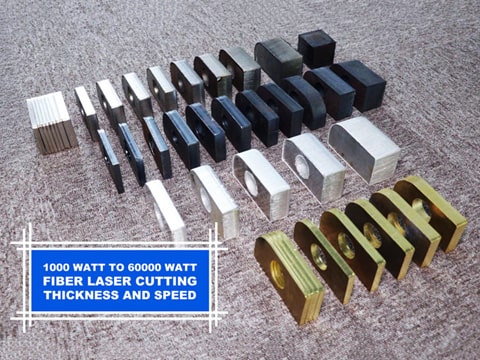
For detailed guidance on the relationship between metal thickness, speed, and power for fiber lasers, refer to the fiber laser cutting thickness speed and power chart. To explore costs and options for a metal engraving setup in the United States, check the laser metal engraver cost guide.
Choosing the Right Laser Type for Your Material
Not every laser works with every material. Selecting the correct laser source is just as important as dialing in speed and power settings. Here is a quick compatibility overview to help guide your equipment decision.
| Material | Diode Laser | CO2 Laser | Fiber Laser |
|---|---|---|---|
| Wood | Good | Excellent | Not Suitable |
| Acrylic (Cast) | Limited* | Excellent | Not Suitable |
| Leather | Good | Excellent | Possible** |
| Bare Metal | Surface Only*** | With Coating | Excellent |
| Anodized Metal | Limited | Excellent | Excellent |
Diode lasers cannot cut clear acrylic. **Fiber may scorch leather. ***Diode lasers need marking spray for metal.
How to Create a Test Grid for New Materials?
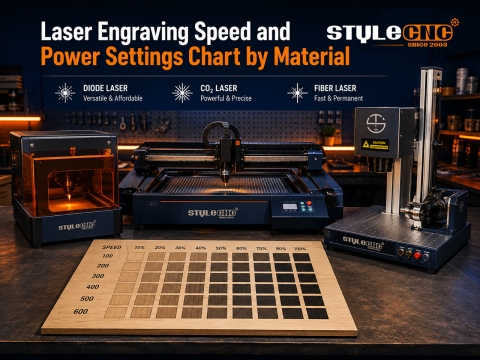
The single most effective technique for dialing in settings on unfamiliar materials is running a speed-and-power test grid. This method eliminates guesswork and provides a physical reference you can keep for future jobs.
Step 1: Create a grid of small squares (10–15 mm each) in your laser software. Assign each column a different speed value and each row a different power value.
Step 2: Run the grid on a scrap piece of your target material. Label the axes directly on the material for reference.
Step 3: Evaluate each square for contrast, depth, edge sharpness, and any discoloration or charring. Select the combination that best matches your desired result.
Step 4: Save the winning parameters as a preset in your laser software (LightBurn, RDWorks, LaserGRBL, or your machine's native controller) for one-click recall on future projects.
This systematic approach is standard practice among professional operators and saves significant time and material waste over random trial and error. Learn more about general laser engraving machine operation techniques for additional workflow optimization.
Safety Considerations
Every material produces fumes, particulates, or both during laser processing. A properly rated fume extraction system is non-negotiable for any laser workshop. Beyond extraction, follow these essential safety practices.
Materials to Never Laser: PVC and vinyl (releases hydrochloric acid gas), polycarbonate (discolors, produces toxic fumes), ABS (cyanide risk), materials containing chlorine, and any material with unknown composition. When in doubt, request a Material Safety Data Sheet (MSDS) from your supplier before processing.
Ventilation: Use a dedicated exhaust system rated for your machine's enclosure volume. Inline filtration with activated carbon is recommended for workshops without exterior venting.
Fire Prevention: Never leave a running laser unattended. Keep a fire extinguisher within arm's reach. Enable flame detection sensors if your machine supports them. Paper, fabric, and thin leather are particularly flammable at low speeds and high power.
Frequently Asked Questions
What is the best laser type for beginners?
A 40–60W CO2 laser offers the most versatility for beginners who want to work across wood, acrylic, leather, and coated metals. Diode lasers in the 10–20W range are more affordable and handle wood and leather well, but they are limited with acrylic and metal.
Can I engrave metal with a CO2 laser?
Only with preparation. CO2 lasers can mark anodized aluminum directly and can engrave bare metals when a thermal marking compound is applied first. For permanent, coating-free metal engraving, a fiber laser is required.
How do I prevent charring on wood?
Increase speed, reduce power, and ensure air assist is active. Applying painter's tape over the surface before engraving can also reduce smoke residue. After engraving, clean with a damp cloth and light sanding if needed.
Do laser engraving settings change with machine age?
Yes. CO2 laser tubes degrade over time, losing output power gradually. A tube that originally output 60W may drop to 50W or lower after 2,000–4,000 hours. Recalibrate settings periodically and consider tube replacement when you notice consistent under-performance. What DPI should I use for photo engraving?
Photo engraving typically requires 600 DPI or higher for acceptable tonal detail. Use a dithering algorithm (Stucki or Jarvis) in your software to convert grayscale images into laser-compatible dot patterns. Slower speeds and consistent focus are critical for photographic work.