An essential step in bridging the gap between design and manufacturing is the generation of a G-Code file. For CNC users, ArtCAM is a potent tool that makes it easier to create intricate drawings and converts them into machinable code. Both novice and expert users will be able to easily generate G-Code for CNC machines by following this guide, which demonstrates the process. Together, we can deconstruct each stage and assist you in producing the ideal file for your endeavor.
What is ArtCAM?
Specialized CAD/CAM software called ArtCAM is utilized in the design and construction of CNC machinery. Its unique ability to produce incredibly accurate 2D and 3D models has made it well-liked in a variety of industries, including sign-making, jewelry-making, carpentry, and more. With the help of ArtCAM's assortment of tools, users may sketch, mold, and work with designs right inside the program. ArtCAM's intuitive interface makes it straightforward to translate artistic concepts into exact machine instructions, regardless of the complexity of the reliefs or engravings you are creating.
The software's strong toolpath generating capabilities, which make it easier to prepare designs for CNC machining, are particularly appreciated. On one platform, users may choose the ideal tools for their material, alter cutting depths, and personalize their machining tactics. For professionals and enthusiasts wishing to use CNC machines to realize their digital designs, ArtCAM is the preferred option due to its extensive design options and adaptability.
What is G-Code?
The programming language used to operate CNC machines is called G-Code, and it directs their motions and actions to carry out predetermined tasks. Consider G-Code as the collection of instructions that specify to the machine all of its movements, speeds, and cutting timings. Every line of G-Code denotes a distinct action, such as changing the tool, shifting the cutting tool, or modifying the spindle speed.
After configuring your design and toolpaths, CAM (Computer-Aided Manufacturing) software, like ArtCAM, generates G-Code files. After being created, these files are fed into the controller of the CNC machine, which then reads the instructions and makes the necessary cuts. Precise settings and simulations before to executing the work are essential since the quality of the G-Code generation determines the precision and efficiency of your machining project.
Why Use ArtCAM for G-Code Generation?
ArtCAM is a great option for creating G-Code because of its sophisticated design capabilities and easy-to-use interface. Here are some of the reasons CNC users think it's better.
• Highly accurate and detailed designs are possible with ArtCAM thanks to its intuitive layout for both 2D and 3D designs.
• The machining techniques that ArtCAM comes with make toolpath generation easier.
• A large variety of CNC machines are supported.
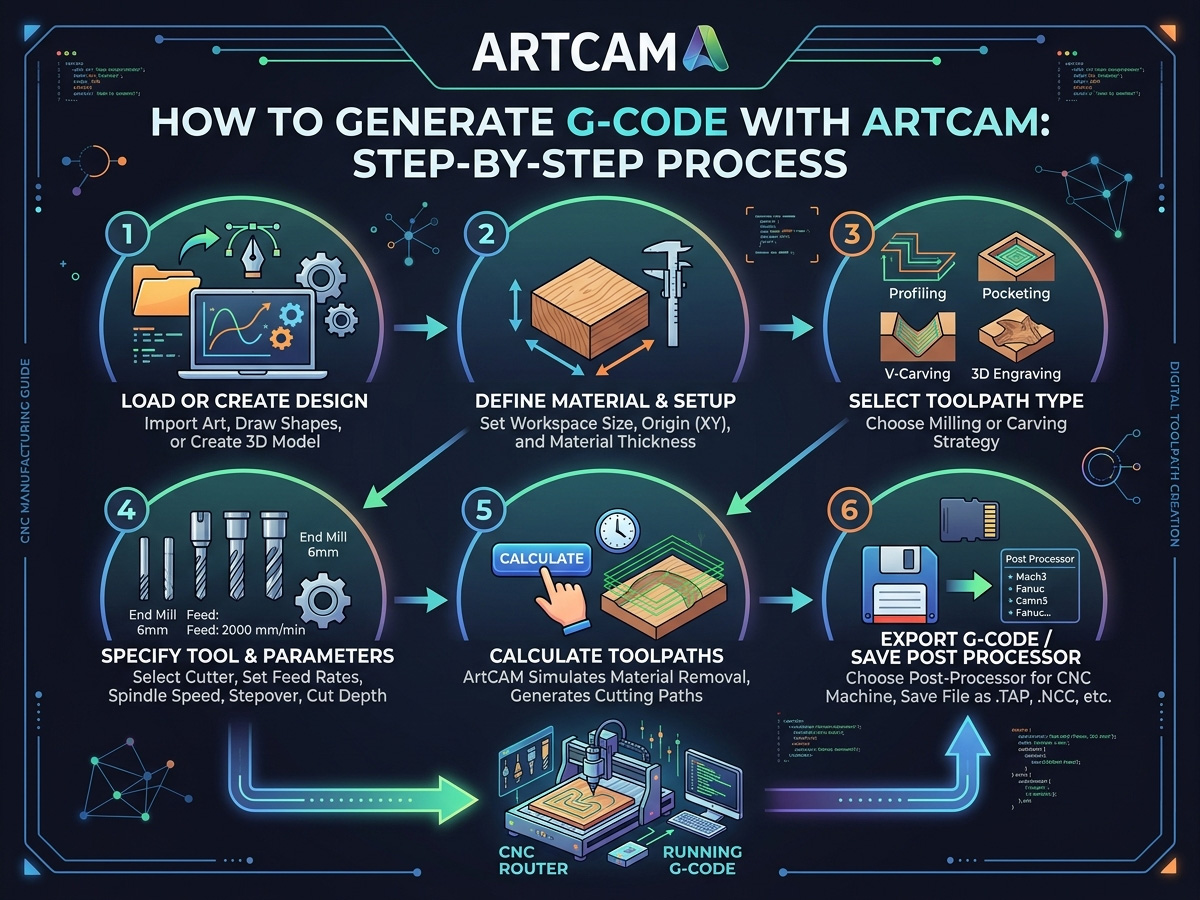
How to Generate G-Code with ArtCAM for CNC Machine
Using ArtCAM to create G-Code for your CNC machine is a crucial step in realizing your designs. Your CNC machine interprets your digital drawings into precise movements and actions using G-Code, which serves as its language. With its robust design and toolpath development capabilities, ArtCAM streamlines this process and makes it easier to produce precise G-Code. The quality and effectiveness of your CNC projects can be greatly increased by learning how to generate G-Code with ArtCAM, regardless of your level of experience.
Setting Up Your ArtCAM Project
It's important to properly set up your project before you start designing. Start your project only after making sure you have a perfect arrangement. This is how you begin,
• Start your computer's software.
• Choose "New Model" from the main menu and enter the project's dimensions. This encompasses thickness, width, and height.
• The kind of material you're working with will determine the cutting settings that you can use.
• Designate the position at which your CNC machine will start cutting, which is typically the bottom left or center.
Creating or Importing Your Design
Now it's time to bring your design into ArtCAM. You can either create a new design directly within the software or import one from another CAD tool.
Creating a New Design in ArtCAM
• Use the vector drawing tools to make text or basic shapes. With the help of this toolkit, one can create closed objects, curves, and lines for use in CNC operations.3D modeling tools are available from ArtCAM if you require a more complex design.
• You can utilize sculpting tools to produce complex carvings, work with reliefs, and create textures.
Importing Designs
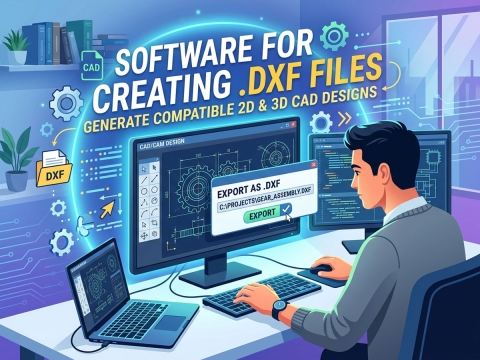
• ArtCAM lets you import files in DXF, EPS, and STL formats if you've already planned your project using another program (like AutoCAD or Adobe Illustrator).
• Just pick your file by navigating to "File" > "Import". Setting up toolpaths is the following step when your design is complete.
Setting Up Toolpaths
Toolpaths are the routes that the CNC machine will follow to carve your design. ArtCAM simplifies the process by offering various toolpath strategies for different types of cuts.
Toolpath Types
1. 2D Toolpaths: For simple cutting operations, like engraving or profile cutting. These are ideal for flat designs.
2. 3D Toolpaths: Used for more complex designs where depth and curvature are involved, like creating bas-reliefs.
3. Drilling Toolpaths: If your design requires drilling, this toolpath will create vertical holes based on the size of the drill bit.
Toolpath Setup Process
• Choose the Area to Machine: To select the parts of your design that you want the machine to cut, use the selection tools in ArtCAM.
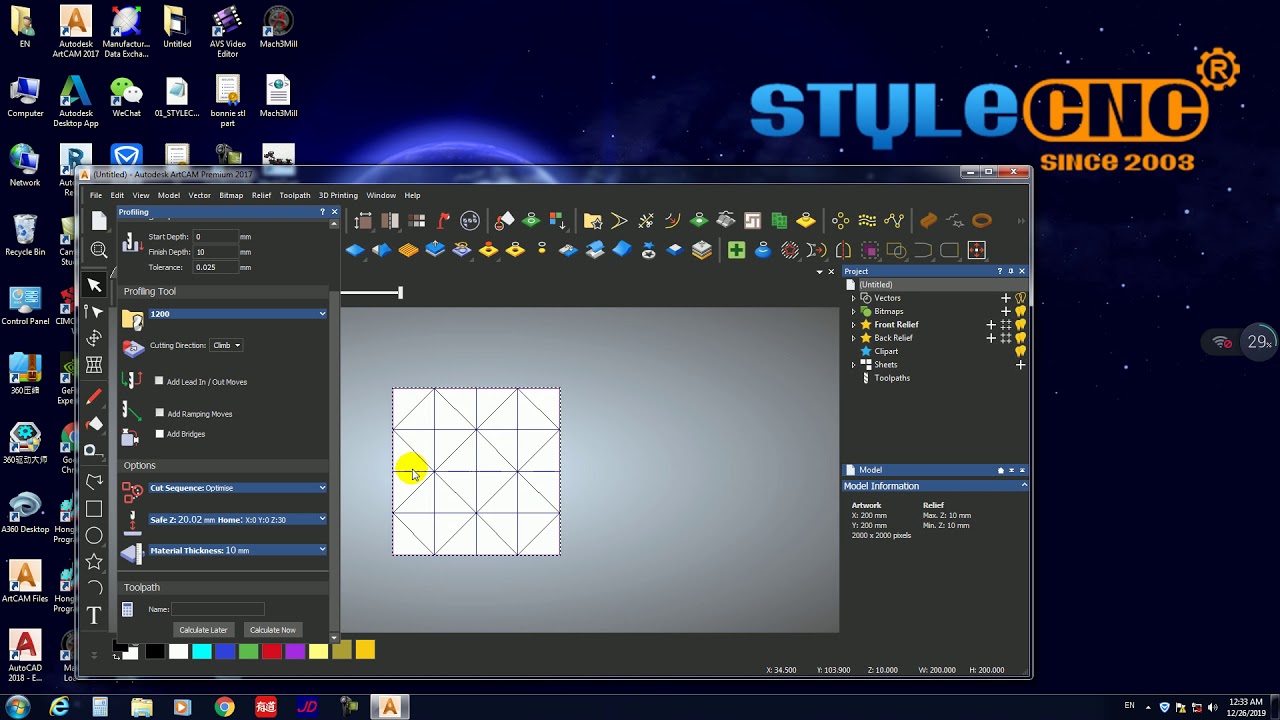
• Select the Correct Tool: By adjusting parameters like diameter and cutting depth, ArtCAM enables you to define your cutting tool (such as an end mill, ball nose, or V-bit).
• Define the machining parameters: Specify the depth of cut, spindle speed (RPM), and feed rate (cutting speed). The material you're dealing with and the level of precision needed for your project will determine these parameters.
• Create the Toolpath: Create the toolpath after the parameters are accurate. Using your design and the configuration of your machine, ArtCAM will compute the path.
Simulating the Toolpath
It is a good idea to simulate the toolpath in order to examine how the CNC machine will carry out the design before producing the final Gcode. With the help of ArtCAM's simulation capability, you may see a preview of the cut and identify any potential problems before machining.
Make sure that no portion of the material or machine will collide with the tool. Return to the toolpath setup and make the necessary adjustments if you find any problems. Because simulation eliminates errors, it can save you both time and resources.
Generating the G-Code
It's time to generate the G-Code file once the toolpath is finalized. This step is critical, as the Gcode will be used by the CNC machine to perform the cutting operation.
Steps to Generate G-Code
1. Choose a Post Processor: ArtCAM is compatible with many brands and kinds of CNC machines. Select the proper post-processor, which converts your toolpath into G-Code that is unique to your machine.
2. Generate G-Code: Select the post processor and then click the "Generate G-Code" option. The file will be saved with an extension of ".nc" or ".tap," or in a format that can be read by your CNC machine.
3. Save the File: When you're ready to send the G-Code file to the CNC machine, save it in a location that will be convenient for you to access.
Transferring the G-Code to Your CNC Machine
Now that you have your G-Code file, it's time to load it into the CNC machine. There are a few ways to do this depending on the machine.
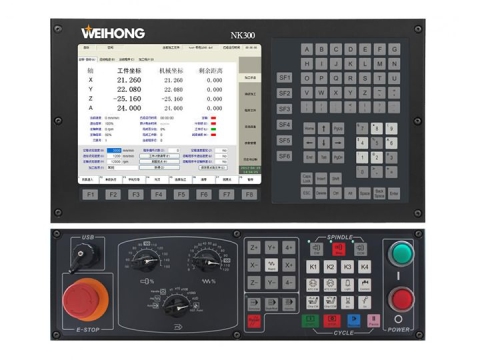
• USB Transfer: G-Code can be transferred via a USB drive on a lot of CNC machines. To use the file, just copy it to a USB stick and insert it into the computer's controller.
• Direct Connection: Using a serial or USB connection, certain devices enable direct communication between your computer and the CNC.
• Wireless Transfer: You can send the G-Code file straight from your computer via Wi-Fi if your CNC machine is capable of supporting wireless connections.
Once the G-Code is uploaded, you can start machining.
Common Mistakes to Avoid When Generating G-Code
Even experienced users can make mistakes during the G-Code generation process. Some common mistakes you can make are,
1. Incorrect Toolpath Configurations: Verify your feed rate, spindle speed, and tool size twice a day.
2. Ignoring the Simulation: Although a simulation may appear time-consuming, it might save expensive mistakes.
3. Using the Wrong Post Processor: Verify that the post processor you use is appropriate for the particular CNC machine you own.
Tips for Optimizing G-Code Generation in ArtCAM
Achieving seamless and effective CNC machining requires optimizing G-Code generation in ArtCAM. By streamlining your toolpaths, modifying feed rates, and arranging your design layers, you may save time and improve the correctness of your project. These small adjustments help you get the most out of your machine and materials while also enhancing performance. Here are some pointers for maximizing ArtCAM's G-Code generation:
• Use Layers for Complex Designs: Using layers can help you efficiently manage and arrange multiple toolpaths in your project.
• Test with a Sample Material: Make sure everything functions properly by testing the G-Code on a sample before executing it on your finished product.
• Optimize Toolpaths for Quicker Cuts: ArtCAM lets you adjust toolpaths for maximum effectiveness.
• Try adjusting the cut order and feed rate for faster production without sacrificing quality.
Choosing the Right ArtCAM Toolpath Strategy for Your Project
ArtCAM offers multiple toolpath strategies, and selecting the correct one before generating G-code determines both cut quality and cycle time. Profile toolpaths cut along the outline of a 2D vector for sign lettering, inlays, and component profiling. Area clearance toolpaths remove material inside or outside a vector boundary for pockets, recesses, and flat-bottom cavities. For 3D work, roughing toolpaths clear bulk material with a flat endmill at aggressive step-down values, and finishing toolpaths follow the relief surface with a ball-nose bit at a fine stepover to produce smooth detail on decorative panels, corbels, and furniture elements.
Matching the toolpath to the machine matters just as much as matching it to the design. Standard 3-axis CNC wood routers handle profile cuts, pocketing, and single-sided relief carving efficiently. Complex sculptures and wraparound carvings require the rotary toolpaths available when outputting G-code for a 3D CNC router machine with a fourth axis. ArtCAM's toolpath simulation preview lets you verify the finished shape on screen before committing to material, catching depth errors, gouges, and missed areas that would otherwise waste stock and machine time.
Selecting the Correct Post Processor for Your CNC Controller
A post processor is the translation layer between ArtCAM's internal toolpath data and the specific G-code dialect your CNC controller understands. Different controllers, such as DSP, Mach3, GRBL, NCStudio, and Syntec, interpret G-code commands with subtle variations in arc formats, spindle codes, and safe-height handling. Using the wrong post processor can cause axis direction errors, incorrect spindle start sequences, or unexpected rapid moves that crash the tool into the workpiece.
ArtCAM ships with a library of post processors for common controllers, and most CNC router manufacturers provide a recommended post file matched to their machine's firmware. Before saving your first G-code file, confirm which controller your machine runs and load the corresponding post processor in ArtCAM's output settings. Run a dry test with the spindle off and the tool raised to verify that axis movements, feed rates, and tool changes execute in the correct order. For a broader overview of compatible design and manufacturing software, the CNC software resource library lists the most widely used CAD/CAM software packages alongside their supported file formats and controller compatibility.
Troubleshooting Common G-Code Errors After Exporting from ArtCAM
Even a properly designed toolpath can produce unexpected results on the machine if the G-code export contains parameter mismatches. One of the most frequent issues is a unit mismatch: ArtCAM may export in millimeters while the controller expects inches, causing the machine to cut at a fraction of the intended size or overshoot the workpiece entirely. Always verify that the G-code header specifies G21 for metric or G20 for imperial, and confirm that the controller's default unit setting matches.
Feed rate errors rank as the second most common problem. If the exported feed rate exceeds the machine's maximum travel speed, the controller will either clamp the value silently or throw an alarm, depending on the firmware. Review your ArtCAM toolpath parameters against the machine's rated maximum feed and rapid traverse speeds before exporting. Safe-height and retract values also need attention; setting the retract plane too low can drag the tool across clamps or hold-down hardware between cuts. The comprehensive guide to common CNC router problems and troubleshooting solutions covers additional mechanical and software issues that affect cut accuracy. Once your workflow is dialed in, the library of free 3D CNC router files provides ready-to-import designs for testing your ArtCAM-to-machine pipeline on real projects.
Conclusion
It's simple to generate G-Code for a CNC machine using ArtCAM. All you have to do is set up your project, design, make toolpaths, and export the G-Code file. With a little experience, you can create excellent machinable files that guarantee accurate and productive output. Never forget to utilize the appropriate post processor, simulate your toolpaths, and properly transfer the file to your CNC machine. Your digital designs can now be readily turned into reality.